


Aramex Shipping Plugin for WooCommerce
Quote shipping, book consignments, download labels and keep tracking alongside your WooCommerce orders. Microbite brings Aramex Australia shipping into your WordPress dashboard.
Prepare single or multi-package shipments and reuse your regular box sizes with saved packaging presets.



Hundreds of satisfied business owners
Trusted By Australian Businesses


For Australian WooCommerce stores
Built for stores that ship with Aramex Australia
Give your store owner or dispatch team a dedicated Aramex Shipping panel inside each WooCommerce order. Prepare packages, check shipping costs and create consignments using the order’s saved delivery details.
You’ll need an active Microbite plugin licence and an aramexConnect account with API credentials. Aramex shipping charges are separate from the plugin purchase. Read the installation and setup guide →
Quotes
Review costs before booking
Labels
Thermal and A4 PDF formats
Packages
Presets and multiple parcels
Tracking
Kept alongside your orders
Everyday dispatch
Keep your shipping workflow with the order
When you fulfil orders with Aramex Australia, keeping parcel details, shipping costs and tracking together makes the next dispatch step easier to find.
Use the saved delivery address
Start with the delivery details already saved in WooCommerce. Check the address before booking your Aramex consignment.
Keep tracking with the order
Find the Aramex tracking link in your orders list and include shipment tracking in the customer’s completed-order email.
Review the shipping cost
Request a quote for your prepared parcels before creating a paid shipment, so you can check the cost as you fulfil the order.
Reuse your regular boxes
Save common package weights and dimensions as My Items presets, then select them for future shipments.

Features
Quotes, labels and tracking for WooCommerce orders
Microbite Aramex Shipping is an admin fulfilment tool for Australian WooCommerce stores. Work from a dedicated shipping panel in each order, with the package details and shipment information your dispatch team needs.
01
Aramex shipping quotes before booking
Calculate an Aramex quote for the selected satchels or parcels directly from the order screen. Review the quoted cost before creating the consignment. Rates depend on your Aramex account, destination and package details.
02
Book your consignment
Create an Aramex consignment using the order’s saved delivery details and your prepared packages. Keep the resulting shipment information alongside the WooCommerce order.
03
Multiple packages in one consignment
Add several packages to an order’s consignment. Start with the products’ stored weights and dimensions or enter parcel details manually, then check the package configuration before quoting.
04
Shipping label PDFs for your workflow
Download an existing shipment label in 4 × 6-inch thermal or A4 format. For orders already booked with Aramex, the bulk label action combines their existing labels into one PDF.
05
Tracking links and completed-order emails
Store the Aramex tracking number with the order and open tracking from the WooCommerce orders list. When a booked order’s customer completed-order email is sent, it includes the shipment’s tracking details.
06
Saved packaging presets with My Items
Create named presets for the boxes you use regularly, including weight and dimensions. Select a saved My Items package when preparing the next shipment and adjust it when needed.
07
Reusable pickup instructions
Save pickup instructions and choose the relevant entry for a consignment. The selected instructions appear on its label. Collection arrangements remain in aramexConnect.
08
Cancellation and wallet refund requests
Use Delete & Refund to request cancellation and an Aramex wallet refund for an eligible unused consignment from the order screen. Cancellation eligibility is determined by Aramex.
09
Clear messages when a booking needs attention
See booking responses for issues such as insufficient wallet funds, unserviced delivery addresses or parcel limits, so you can review the details before the next step.
VERSION 1.0.6 · DEMO SCREENS
See Aramex shipping inside WooCommerce
Prepare your parcels, review a shipping quote and book an Aramex consignment alongside the order you’re fulfilling. These real screens show version 1.0.6 tested in our demo store. Select a screenshot to enlarge it.
01 / PREPARE & QUOTE
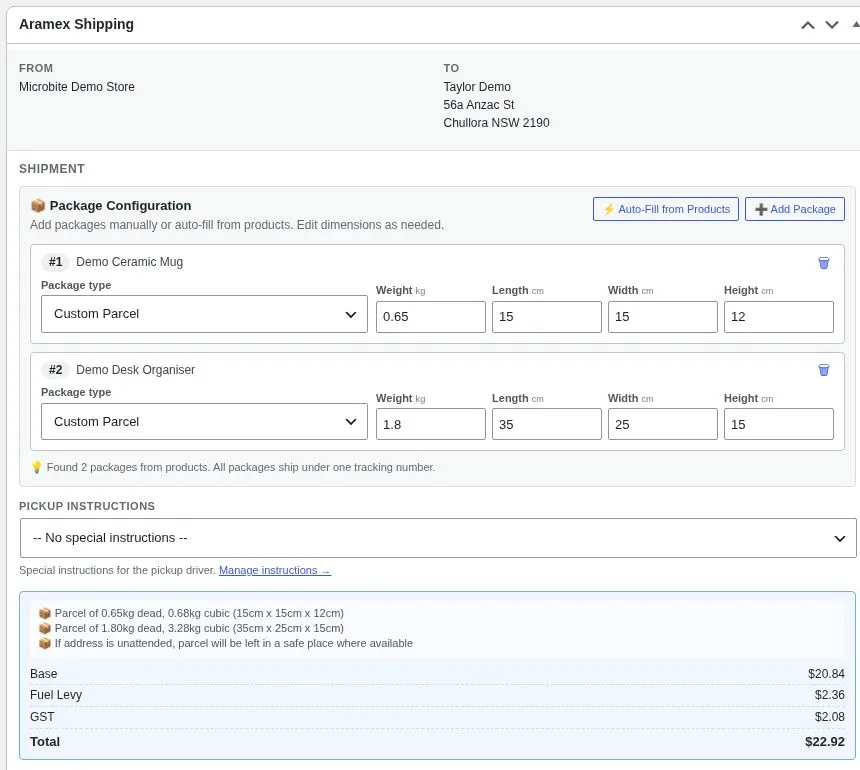
Check the cost before you book
Add one or more packages, review their weights and dimensions, then request an Aramex quote from the WooCommerce order screen. Reuse your regular boxes with saved My Items presets.
Shown: a two-parcel demo shipment and its quote breakdown.
02 / REVIEW & CONFIRM
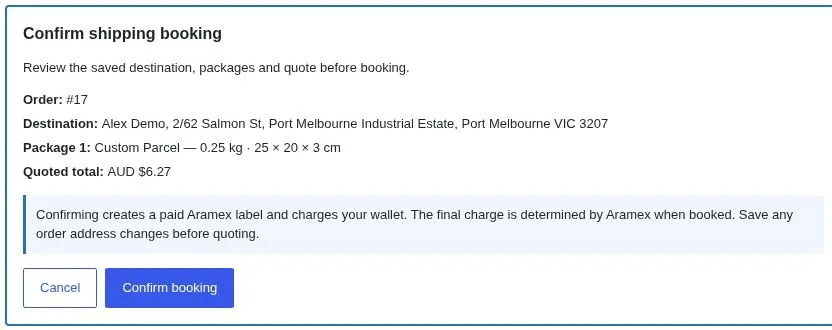
A clear review before the charge
Check the saved destination, package details and quoted total in the booking confirmation. Confirm when you’re ready to create a paid Aramex label. Aramex determines the final charge when the booking is made.
Shown: confirmation for a separate, single-parcel demo order.
03 / BOOK & LABEL
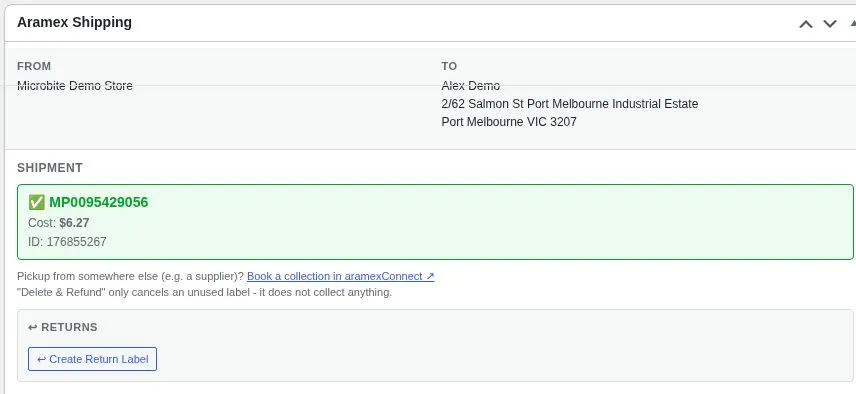
Keep the shipment with the order
See the booked consignment and shipping cost in the order’s Aramex panel. Download its shipping label and keep tracking details alongside your WooCommerce order. Arrange collection in aramexConnect when needed.
Shown: the successful demo booking, which was subsequently cancelled.
WHEN PLANS CHANGE
Cancel an eligible unused label
Use Delete & Refund to request cancellation and a wallet refund for an eligible unused consignment. Review the confirmation and refresh the order after the result. Refund eligibility is determined by Aramex.
Shown: Aramex accepted our demo cancellation and refund request.

Demo orders shown. Example shipping rates vary by Aramex account, destination and parcel details. Plugin licence fees and Aramex shipping charges are separate.
Read the setup guide →How It Works
Four steps from order to shipping label
Activate your plugin licence, connect your aramexConnect API credentials and review your shipping settings. Then prepare each WooCommerce shipment with these four steps.
01
Open the Order
Open the WooCommerce order and its Aramex Shipping panel. Save and check the delivery address and recipient contact details before requesting a quote.
02
Configure Packages
Choose a supported satchel, custom parcel or My Items preset. Add extra packages when needed and check each package’s weight and dimensions.
03
Get a Quote
Select Calculate Price to request an Aramex quote for your prepared packages. Review the cost before you book.
04
Create & Label
Create the shipping order to book the Aramex consignment, then download its label PDF. Tracking details are saved with the order. Arrange collection through aramexConnect when needed.
Supported Package Types
Satchels, parcels, and custom presets
Choose supported Aramex satchels, enter custom parcel measurements or reuse a saved My Items preset. Satchel availability and parcel limits depend on your Aramex account.
| Package Type | Size | Max Weight | Type |
|---|---|---|---|
| 300gm Satchel | — | 300g | Satchel |
| A5 Satchel | 14.8 × 21cm | 500g | Satchel |
| A4 Satchel | 21 × 29.7cm | 1kg | Satchel |
| A3 Satchel | 29.7 × 42cm | 3kg | Satchel |
| A2 Satchel | 42 × 59.4cm | 5kg | Satchel |
| Custom Parcel | Enter L × W × H | Account limit | Parcel |
| My Items (Presets) | Your saved dimensions | Account limit | Preset |
Requirements
Compatibility at a glance
WordPress
5.8 or higher
WooCommerce
6.0 or higher
PHP
7.4 or higher
Aramex Account
Connect API access required
HPOS Support
Requires compatibility sync
Current Version
1.0.6
FAQ
Questions about Aramex shipping for WooCommerce
What do I need to use the plugin?
You need WordPress 5.8 or higher, WooCommerce 6.0 or higher, PHP 7.4 or higher, an active Microbite plugin licence and an aramexConnect account with API credentials. Your server must be able to connect to the Aramex API.
How do I buy and activate the plugin?
Purchase your Microbite plugin licence through the SureCart checkout. Once you have your plugin ZIP file and licence key:
- In your WordPress dashboard, go to Plugins → Add New → Upload Plugin.
- Upload the plugin ZIP, select Install Now, then activate the plugin.
- Open Aramex Shipping → Manage License and activate your licence.
- Enter your aramexConnect API credentials and review your shipping settings.
- Open a WooCommerce order, check the delivery details and prepare your packages before requesting a shipping quote.
Your plugin purchase and Aramex shipping charges are separate. The plugin works with WooCommerce; Bricks Builder is not required.
Does it show live Aramex rates at checkout?
The plugin provides shipping quotes and bookings in the WooCommerce admin order screen. It does not add live Aramex rates to the customer checkout.
Can I print shipping labels in bulk?
Yes. Select orders that already have Aramex consignments and use the bulk label action to download their existing labels together in one PDF. Individual labels are available in 4 × 6-inch thermal or A4 format.
Will customers receive tracking information?
Aramex tracking details are included in the WooCommerce customer completed-order email when the order has an Aramex booking. You can also access the tracking link from your orders list.
Are Aramex shipping charges included in the plugin price?
No. Your purchase covers the plugin licence. Aramex shipping charges are separate and are paid through your aramexConnect account when you book a consignment.
Does the plugin require Bricks Builder?
No. Its shipping tools run in the WordPress admin area and require WooCommerce. Bricks Builder is not a plugin dependency.
Does the plugin support WooCommerce HPOS?
The plugin supports the HPOS order screens, but this version requires WooCommerce compatibility sync for outbound shipment and tracking data. Enable compatibility sync before using it with HPOS.
Can I use my existing aramexConnect account?
Yes. Connect an aramexConnect account that has API access using your API credentials. The plugin uses that account for shipping quotes and bookings. You also need an active Microbite plugin licence.
Can one order contain multiple packages?
Yes. Add multiple packages to the order’s consignment. Enter weights and dimensions manually, start with product measurements or reuse a saved My Items preset. Review all packages before requesting a quote.
How do I arrange collection after booking?
Arrange collection through aramexConnect when needed. Creating a shipping label and arranging collection are separate steps. Saved pickup instructions are printed on the label.
Can I cancel an Aramex consignment and request a refund?
Use Delete & Refund from the order screen to request cancellation of an eligible unused consignment and a refund to your Aramex wallet. Eligibility is determined by Aramex. Check the cancellation result and verify the credit in your aramexConnect account.
Get your Aramex Shipping plugin licence
A$49
Lifetime licence · Up to 100 sites
One-time payment in AUD · Digital plugin download
Download the plugin ZIP, install it on your WooCommerce store and activate your SureCart licence. Requires an aramexConnect account with API credentials; Aramex shipping charges are separate.
